

How to Start Benchmarking LLMs on your PC

 Photo: Jacob Bobo
Running a large language model on your PC can feel like a bit of a guessing game. Will it be fast enough? How much will model size or quantization affect performance? And what hardware matters most—your GPU, memory bandwidth, or something else entirely?
The only way to know is to benchmark. But unlike gaming, where tools like 3DMark make performance testing straightforward, benchmarking LLMs requires a bit more know-how. In this guide, I'll walk you through everything you need to test LLM performance on your PC, from choosing the right tools to understanding what metrics like TTFT and TPS actually mean.
What to do before you benchmark an LLM
Before you benchmark there are several basics that you’ll need to consider. First, you’ll want to decide the exact hardware you plan to use to accelerate your AI workloads. In most cases this is a simple choice: it’s the GPU. However, a few PCs can place some or all of an AI workload on a Neural Processing Unit (NPU). PCs with Qualcomm’s Snapdragon X chips are an example of that. You’ll also need to make sure you have the latest available drivers for your hardware. This is a simple, but important, step for any benchmark test.

AMD ROCm is an AI software stack that can optimize AI performance on AMD hardware. [Screenshot: Matthew Smith]
Obtaining drivers for GPUs is easy. NVIDIA, AMD, and Intel offer GPU driver installation utilities that will automatically detect your hardware and download the latest driver. NPU drivers are slightly harder to find, so I’ve provided links to them below.
MacOS users will automatically receive the latest updates through Apple’s software update. Windows Update may also do the same thing, but manually checking your drivers remains a good move for Windows users.
In addition to drivers, AI workloads perform best with the proper AI software stack for the hardware in question. The most famous example is NVIDIA’s CUDA, but AMD has ROCm (Radeon Open Compute), Apple has Metal, Intel has oneAPI, OpenAI has Triton, and so on. These days, most LLM clients support CUDA, ROCm, and Metal, but support beyond that is spotty.
You’ll also want to run through common steps that apply to any benchmark. If you’re using a laptop, plug it in. Change your power profile to a high performance mode. Finally, open Windows Task Manager, or MacOS Activity Monitor, and close any apps or services that are consuming significant system resources.
What to use as an LLM benchmark
Next, you’ll need to decide the software you’ll use to benchmark LLM performance. This is where things start to get more complicated.
You might expect that you’ll download the AI equivalent of 3DMark and simply run that. That’s not the case. UL, the company that owns 3DMark and PCMark, does have an AI benchmark called Procyon. But it’s meant for enterprise and professional users (you have to contact their sales department to download it).
The most useful all-in-one LLM benchmark I’ve run across is LocalScore, an open-source benchmark that’s free to download. LocalScore even provides an online leaderboard for comparing your results to others. LocalScore only provides a text-based Command Line Interface (CLI), though, so it’s not for everyone.
 LocalScore is like Geekbench for LLMs, though a bit more complicated to use. [Screenshot: Dan Ackerman]
Alternatively, you can bypass benchmark tools and go straight to the LLM client software you plan to use day-to-day. This will probably be a Graphical User Interface (GUI) LLM client like LM Studio, AnythingLLM, or Jan.ai, though you may also use Ollama if you’re comfortable with a CLI. Most GUI LLM clients display performance metrics as part of their reply.
It’s a bit like the difference between running 3DMark vs. an in-game benchmark to judge your PC’s performance. 3DMark is great if you’re comparing different PCs or to get a general sense of what your PC can do, but an in-game benchmark is more useful if you’re trying to gauge what you’re seeing in a specific game.
Key benchmark results to look for
Most LLM benchmarks and LLM clients are going to provide a few key metrics. These are Time to First Token (TTFT) and Tokens Per Second (TPS). TPS is typically reported for prompt processing and token generation. I’ll explain each.
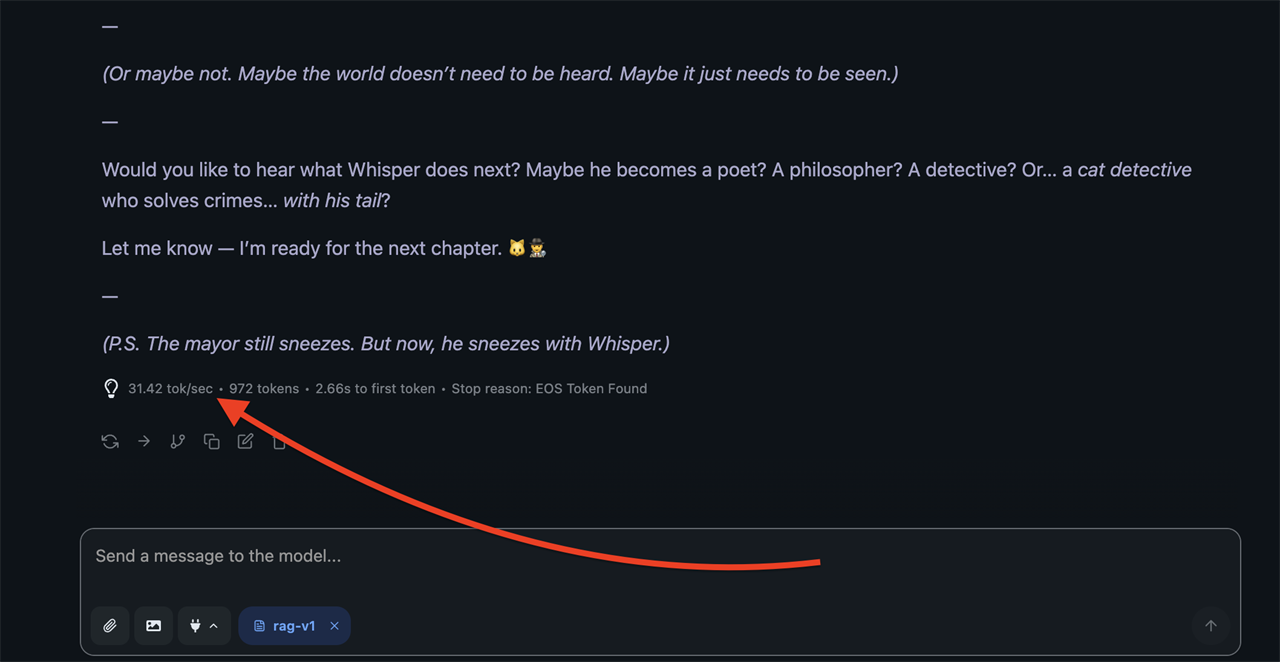
Most LLM clients will provide performance metrics at the end of an LLM’s reply. [Screenshot: Matthew Smith]
Time to First Token (TTFT) is what it says on the tin. It’s the time (or latency, usually measured in milliseconds) between the prompt provided to the LLM and the generation of the first token in the reply. This is an important gauge for how responsive an LLM will feel. A TTFT beyond a few seconds might lead you to think the model has hung up. TTFT performance is most heavily influenced by a PC’s memory bandwidth. Prompt length is also important, with longer prompts generally creating a longer delay.
Tokens Per Second (TPS) for prompt processing tells you how quickly the model is processing tokens related to the input prompt. This is part of TTFT and can benefit from a high-performance GPU or NPU, though memory bandwidth and overall available memory will have the greater influence on TTFT when you’re running an LLM on a system with modest memory performance and capacity (which is the case with the vast majority of consumer PCs available today).
Tokens Per Second (TPS) for token generation tells you how quickly the model is spitting out tokens to reply to your prompt. This tends to be most heavily influenced by the speed of the GPU or NPU in your PC, though memory concerns remain a factor, particularly with longer context windows and prompts, which may cause an LLM to choke on less capable hardware.
Note: Timing a reply with a stopwatch is of limited use because LLMs are probabilistic, meaning a reply will vary even when the prompt is identical. An LLM might output a brief reply in one situation, but a lengthy reply in another. The longer reply will, of course, take longer to generate.
One interesting aspect of LLM benchmarking is that a PC which is fast in one metric could provide slower performance in another, with the largest gap often appearing between TTFT and token generation results. A system with a pretty good NPU, but low memory bandwidth, might process tokens quickly but still take a long time before the first token appears. On the other hand, an older GPU with good memory bandwidth might have a speedy time to first token but deliver slower token generation.
Why some models are faster than others
Obviously, the hardware in your PC is going to have a huge impact on performance. You’ll generally want a lot of high-bandwidth memory and a top-tier GPU or NPU, which is most likely a high-end NVIDIA RTX 50-series GPU like the RTX 5090.
But the LLM you choose to use is important, too.
The size of an LLM (which is measured by its parameters) has a huge impact on performance. Larger LLMs are bigger bundles of numbers that require more matrix multiplications to generate a reply, so they require more memory, more memory bandwidth, and a faster AI accelerator. Larger LLMs also tend to generate better results, though, so you’ll likely want to run the largest version of an LLM your PC can handle without slowing to a crawl.
There’s more to it than just size, however. Many models use quantization to reduce the size of an LLM while preserving (most) of the model’s quality. You’ll often find a single model offered across several, or even dozens, of quantized variants.
And the latest LLMs are using new techniques, like a mixture-of-experts (MoE) architecture, to further improve performance. MoE arranges a model’s parameters into “experts” and selectively activates only those layers judged to be most helpful for each token, which improves performance while maintaining quality. Most new open weights models are going this route. Examples include GPT-OSS-20B, Qwen3, and Mixtral 8x7B, among many others.
It’s all a lot to consider, which is why benchmarking LLMs is useful to begin with.
Most new open-weight LLMs are released with a research paper that brags about their speed and quality. But with so many variations of LLMs and so many variations of PC hardware, it’s hard to judge exactly how an LLM will perform on your PC until you test it yourself.
A note for Mac users
MacOS users should also consider model support for Apple MLX. Some models now have GGUF and MLX versions available, with the latter optimized for Apple hardware. On my MacBook Air M4, I’ve found the MLX variant of a model provides a 10-to-20% boost to TPS performance over the GGUF variant.
More from MC News
- Explaining NVIDIA NVFP4, the DGX Spark's Secret Weapon
- Run AI Locally: The Best LLMs for 8GB, 16GB, 32GB Memory and Beyond
- Quantization Explained: Why the Same LLM Gives Better Results on High-End Hardware
- Why VRAM and Memory Bandwidth are Key for Powering Local AI
- Keyboard 101: Intro to Computer Keyboards
- Fix It Yourself: Talking to iFixit on Why Repairable Tech Matters
- Hands-on with NVIDIA DGX Spark: Everything You Need to Know
Matthew S. Smith is a prolific tech journalist, critic, product reviewer, and influencer from Portland, Oregon. Over 16 years covering tech he has reviewed thousands of PC laptops, desktops, monitors, and other consumer gadgets. Matthew also hosts Computer Gaming Yesterday, a YouTube channel dedicated to retro PC gaming, and covers the latest artificial intelligence research for IEEE Spectrum.


